
Nexus Trader allows you to connect multiple exchanges in grouped mode, display data jointly, and perform various operations simultaneously across all connected exchanges.
For example, in this mode you can view the Orderbook of several exchanges combined together in one place.
To connect multiple exchange accounts and perform grouped operations in Nexus Trader, follow these steps:
1️⃣ Open Accounts Section
From the left toolbar, click the hamburger icon to open the Accounts window.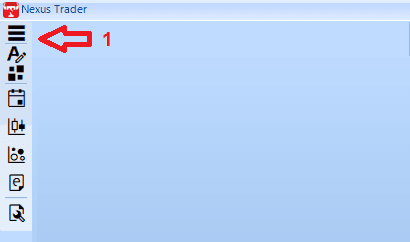
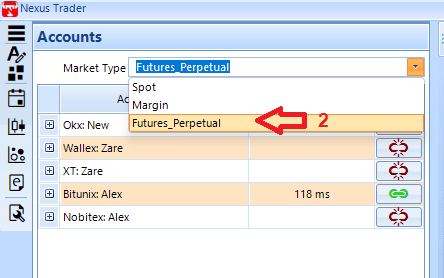
2️⃣ Select Market Type
At the top of the page, select your desired market type from the Market Type dropdown menu:
- Spot: Spot market
- Margin: Margin trading
- Futures_Perpetual: Perpetual futures trading
3️⃣ Connect to Exchange
Click the Connect button to connect to the exchange.
In the account list, if the connection is successful, a green icon will appear and the Ping Latency will be displayed.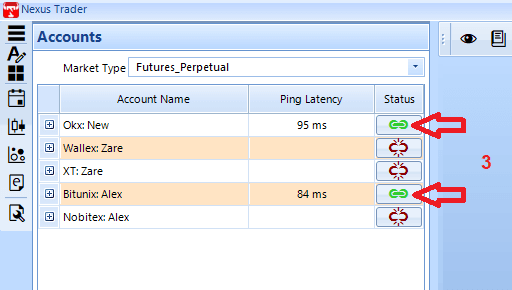
4️⃣ Set Connection Mode
Click the Account Mode button in the left toolbar and select Grouped to put the program into grouped connection mode.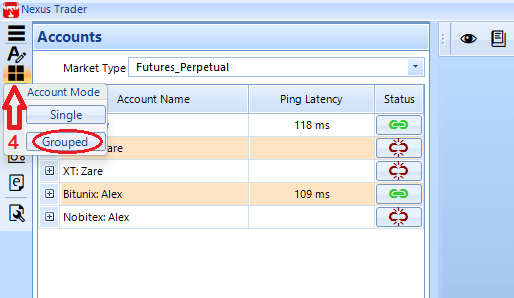
- As shown in the image, once exchanges are connected, the exchange toolbar becomes active.
- In grouped mode, only tools available across all selected exchanges will be active. If even one exchange lacks a tool, that tool will remain inactive.
- Clicking an active tool will open a single operation window that executes across all connected exchanges.
- For example, clicking Open Orders will open one window that displays all open orders from every selected exchange.
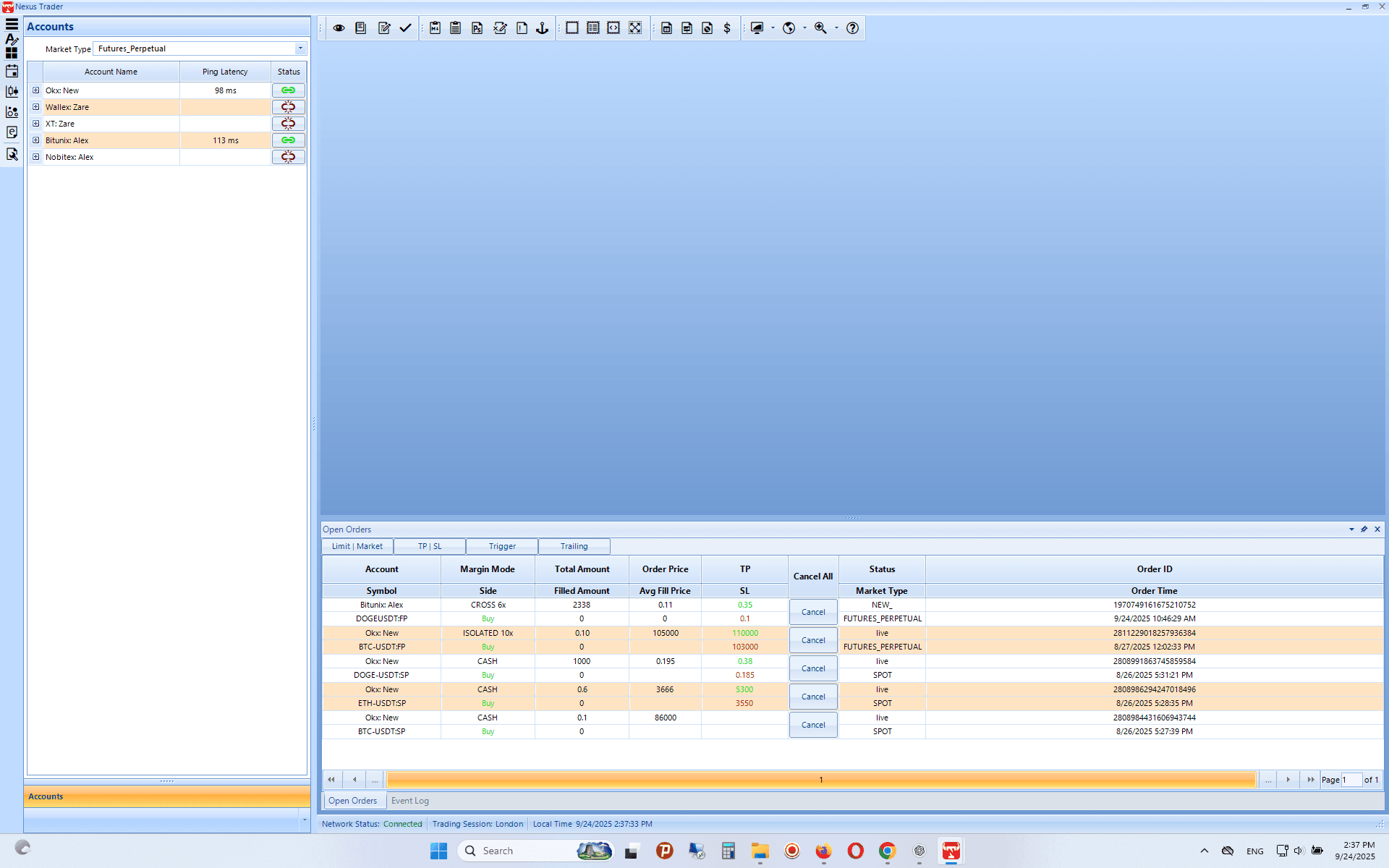
👉 Note: If the connection status is shown in red, it means there is a connection issue with the exchange. In this case, check your API credentials and ensure your internet connection is stable.
👉 Note: In grouped mode, only symbols that exist across all selected exchanges will be displayed.