
To connect an exchange account to Nexus Trader, follow these steps:
1️⃣ Open Settings
In the left toolbar, click the Settings icon.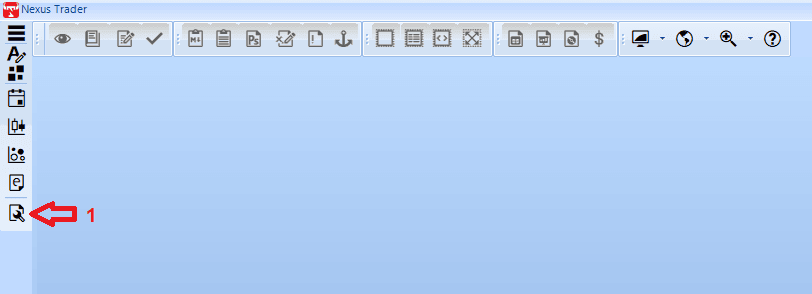
2️⃣ Select Accounts Section
In the Settings window, from the left menu click Accounts.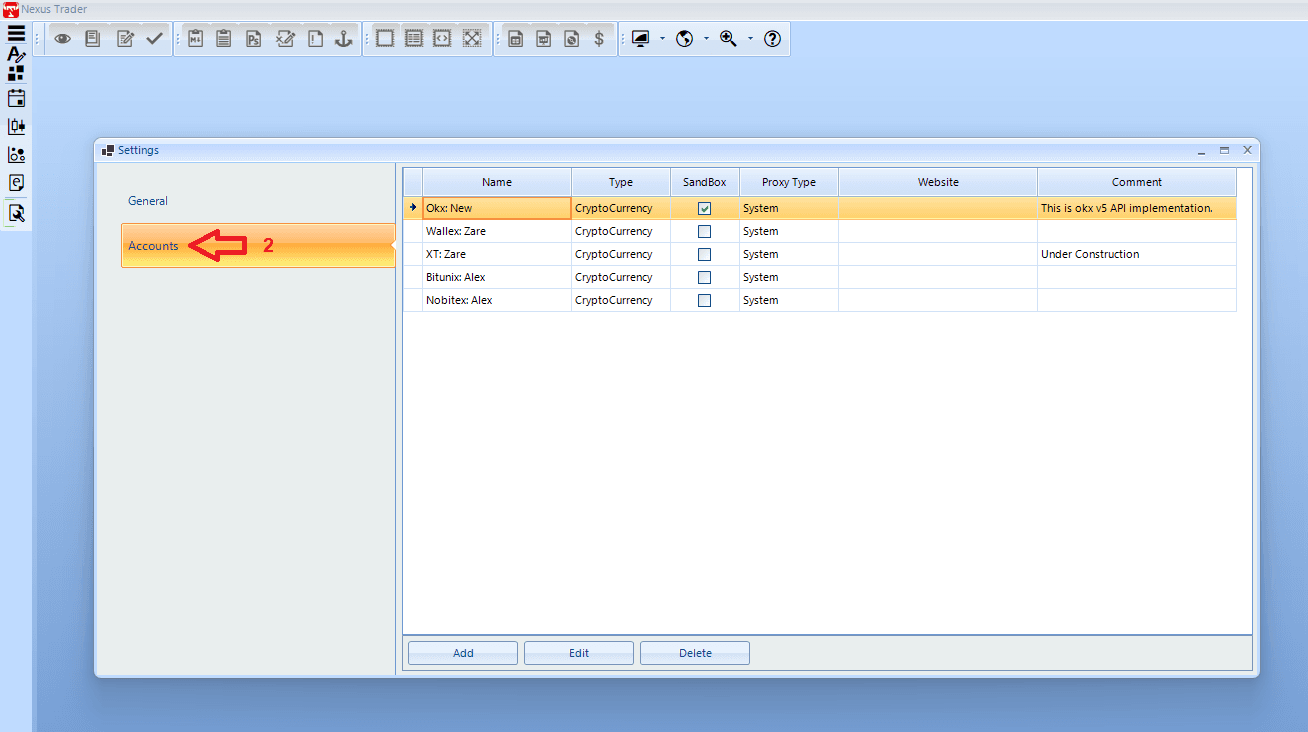
3️⃣ Add a New Account
At the bottom of the page, click Add to open the new account form.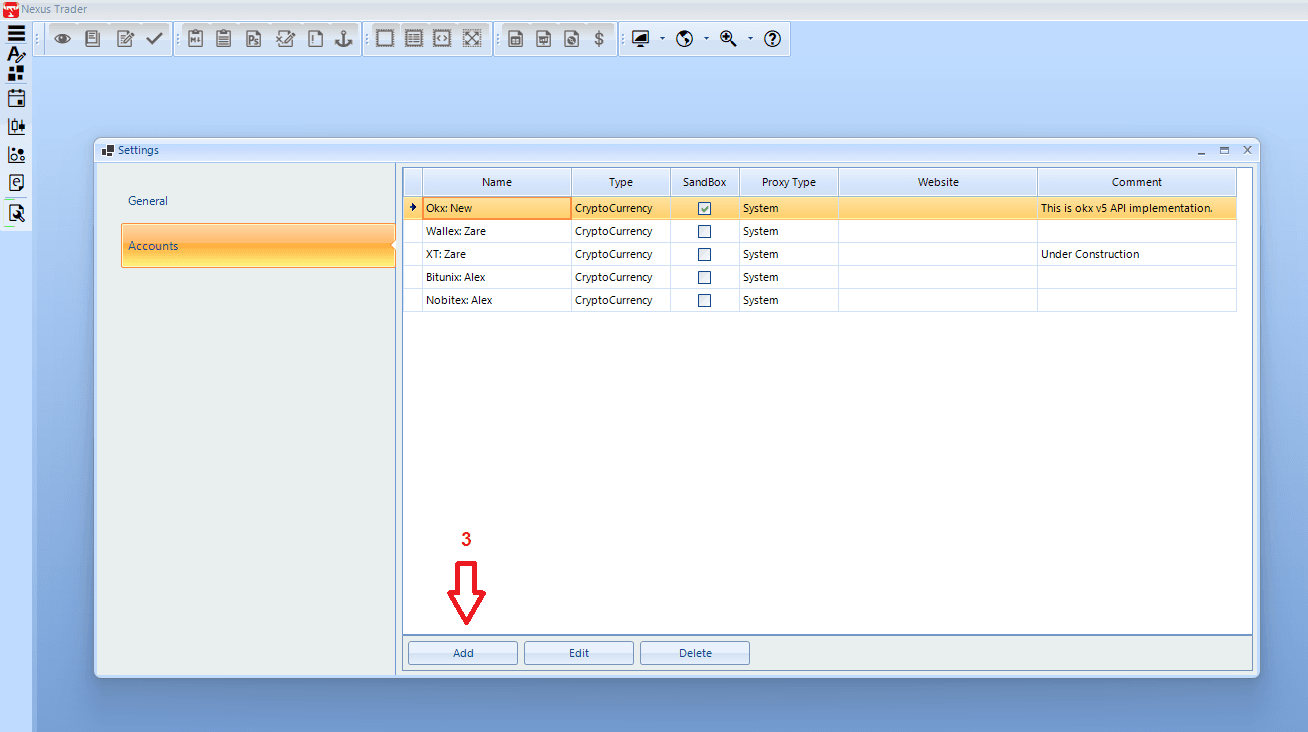
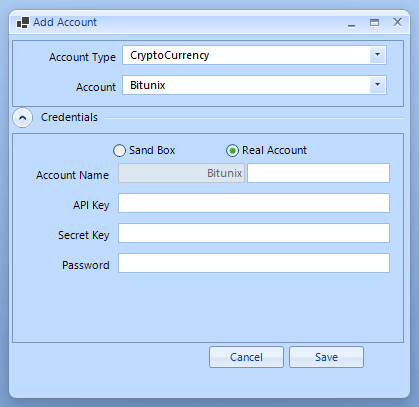
4️⃣ Choose Exchange
In the Add Account window:
- In Account Type, select CryptoCurrency.
- In Account, choose your exchange (e.g., Binance, OKX, Bitunix).
5️⃣ Enter API Information
In the Credentials section, enter your exchange API details:
- Account Name: a custom name (e.g., Binance Alex)
- API Key: the API key from the exchange
- Secret Key: the secret key from the exchange
- Password (if required): API password or 2FA password (if supported)
6️⃣ Save the Account
After filling in the details, click Save to add the account to Nexus Trader.
👉 Note: To get your API Key and Secret Key, log in to your exchange account and create new keys under API Management.
Be sure to set the API permissions according to your needs (e.g., read-only or trading access).
👉 Note: To get your API Key and Secret Key, log in to your exchange account and create new keys under API Management. Be sure to set the API permissions according to your needs (e.g., read-only or trading access).
👉 Note: To apply the changes, you must close the application and log in again.